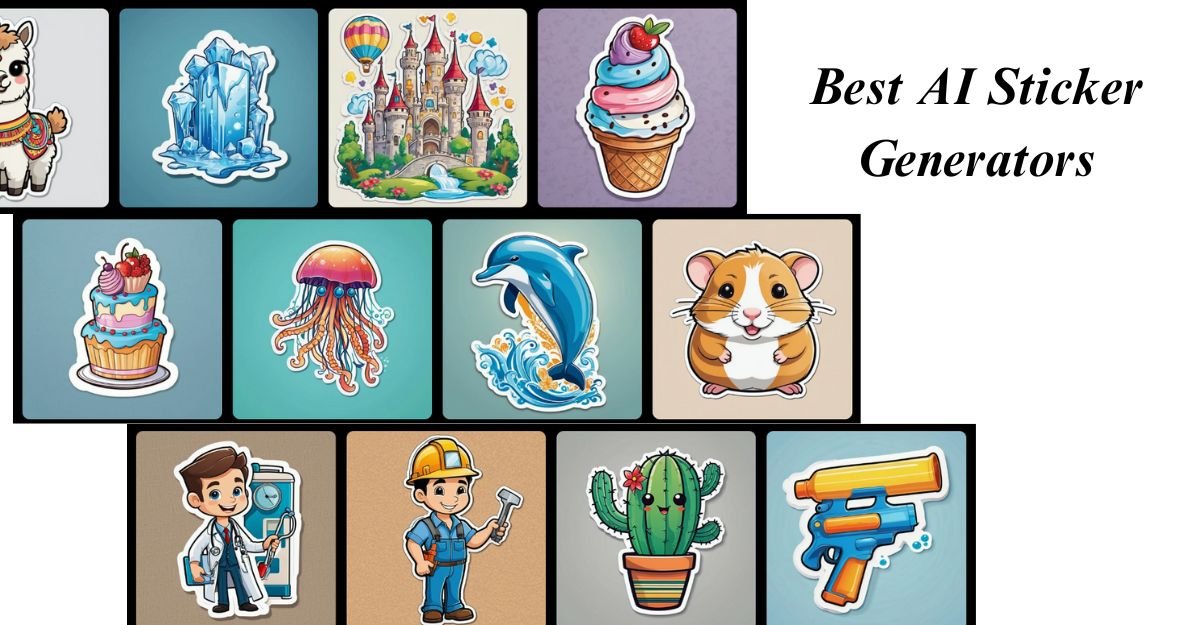
Remember those days when creating a custom sticker meant hours of design work, meticulous tracing, and fiddly background removal? If you've been looking to dive into the world of instant, custom digital art, you're probably eager to learn about getting started with AI sticker generators. You're in luck. The past year has seen these intelligent tools explode in popularity, transforming complicated graphic design tasks into a few clicks or a simple text prompt.
Whether you're crafting personalized messages for WhatsApp, building a quirky Telegram sticker pack, or even dreaming up designs for your e-commerce brand, AI sticker generators are your new best friend. They've democratized creativity, putting professional-grade design power right at your fingertips.
At a Glance: Your Sticker Success Cheat Sheet
- AI handles the grunt work: Forget manual background removal, tracing, and formatting. AI does it for you.
- Speed is key: Most AI tools generate stickers in seconds, not hours.
- Quality varies: Some excel at photo-to-sticker conversion, others at artistic text-to-image.
- Pricing tiers: Many offer free credits, then scale to subscription models for heavy use.
- Choose wisely: Your best tool depends on your goal – Telegram packs, mobile editing, professional art, or just quick fun.
- Prompts are powerful: Learn to "talk" to the AI effectively for the best results.
- Resolution matters: Aim for high resolution (1500-3000px, 300 DPI) for versatile use.
The AI Revolution in Your Pocket: Why Stickers Just Got Simpler
The world of digital communication thrives on visual expression, and stickers have become an indispensable part of our daily chats. From expressing complex emotions to simply adding a touch of personality, these tiny images pack a powerful punch. Historically, creating a custom sticker meant needing a decent grasp of graphic design software, drawing skills, and a lot of patience for tasks like:
- Manual Artwork Generation: Sketching, illustrating, or finding suitable images.
- Background Removal: Painstakingly isolating your subject from its surroundings.
- Outline Creation: Adding that signature "die-cut" look.
- Formatting: Resizing and optimizing for specific platforms (like Telegram's rigid 512x512px format).
It was a time-consuming, skill-dependent process. Then came AI.
Today, an AI sticker maker transforms a simple text prompt (e.g., "cute cat astronaut sticker in chibi style") or an uploaded photo into a ready-to-use sticker in mere seconds. These intelligent algorithms automatically handle tasks like: - Artwork Generation: Conjuring brand-new images from your descriptions.
- Flawless Background Removal: Detecting edges and creating transparent PNGs.
- Outline Creation: Adding crisp, sticker-style borders.
- Instant Formatting: Adapting your creation for various uses, often even for specific platforms.
This shift has eliminated traditional barriers, making "getting started with AI sticker generators" not just easy, but genuinely fun. You can experiment with countless art styles, get instant variations, and have print-ready or app-ready files without ever touching a drawing tablet or complex editing suite.
How to Pick Your AI Sticker Sidekick: What Matters Most
With the market bustling with options, knowing what to look for in an AI sticker generator is key. Here’s a breakdown of the evaluation criteria experts use, and what you should consider:
- Quality of Output: This is paramount. Does the AI offer clean background removal, sharp edges, and a good variety of styles? Is the overall image aesthetically pleasing and free from common AI artifacts?
- Generation Speed: How long does it take from prompt to sticker? A few seconds can make a big difference, especially if you're iterating frequently.
- Pricing Structure: Are there free tiers? What do paid plans offer, and are they good value for your anticipated usage? Look for credit systems or unlimited options.
- Feature Set: Beyond basic generation, what else does it do? Think about art styles, customization options (colors, outlines), batch processing, text integration, and export formats.
- Platform Compatibility: Does it integrate directly with messaging apps? Does it automatically format for specific requirements (e.g., 512x512px for Telegram)?
- Ease of Use: Is the interface intuitive? Can a beginner jump in and create something great without a steep learning curve?
Decoding the Top AI Sticker Generators [2025 Edition]
The market for AI sticker tools is dynamic, but a few standouts consistently deliver across different needs. Here's a look at the top contenders and who they're best for:
Best Overall & Fastest for Messaging: ImageSticker.pro
If your main goal is creating high-quality sticker packs specifically for Telegram, ImageSticker.pro is the undisputed champion. It boasts an impressive 9.5/10 quality rating and mind-boggling generation speeds of 3-6 seconds.
- Why it shines: Over 30 diverse art styles, flawless background removal, and a unique direct Telegram bot integration. This means one-click sticker pack creation, automatically formatted to the 512x512px standard.
- Pricing: A generous free tier (5 credits) to get you started, with Pro credits available from $9.99 for 15.
- Best for: Telegram users needing fast, high-quality photo-to-sticker conversion and seamless pack creation.
Runner-Up for Mobile Mavens: Sticker.ly
For those who live on their smartphone and prefer to manage their creations on the go, Sticker.ly is an excellent choice. This mobile-first app (iOS/Android) scores an 8/10 for quality with generation times of 8-12 seconds.
- Why it shines: Strong pack management features make organizing your digital collection a breeze, and it offers 20 distinct art styles.
- Pricing: A free tier (3 credits) is available, or you can opt for unlimited use at $4.99/month.
- Best for: Mobile users who prioritize managing and creating sticker packs directly from their phone.
Artistic Freedom via Text: DALL-E 3 & Midjourney
When you need to bring entirely original concepts to life from text prompts, these two powerhouses excel at creative generation.
- DALL-E 3 (Exceptional Creative Control): Rated 9/10 for image quality, DALL-E 3 (accessible via ChatGPT Plus at $20/month) is phenomenal for creating unique designs from scratch. It's slower (15-25 seconds per generation) and requires manual post-processing for stickers (background removal, resizing), but the creative potential is vast.
- Best for: Artists and creatives seeking unparalleled control over generating original sticker designs from text prompts.
- Midjourney (Premium Artistic Quality): Achieving an astounding 9.5/10 for artistic quality, Midjourney produces highly detailed, aesthetically rich images in 30-60 seconds. Operating through Discord bot commands, it's geared towards a more artistic user base. Like DALL-E 3, it requires manual post-processing for sticker specific formats.
- Pricing: Starts at $10/month.
- Best for: Professional artists creating premium, highly detailed, artistic sticker packs, especially for unique styles like anime or chibi.
Design Tool Hybrid: Canva Stickers
While not a pure AI generator, Canva Stickers offers a different approach, blending AI-powered elements with robust design control. Rated 7/10 for its sticker capabilities.
- Why it shines: It provides full design control with thousands of templates, making it easy for beginners to start. However, manual creation means 10-20 minutes per sticker.
- Pricing: A free tier exists, with a Pro subscription at $12.99/month unlocking more features.
- Best for: Businesses needing branded stickers with precise control, or beginners who prefer a template-driven design process.
Precision Background Removal: Remove.bg + Manual Editing
For those who demand ultimate control over their existing photos, a combination approach often yields superior results.
- Why it shines: Remove.bg offers 8.5/10 quality specifically for background removal, quickly isolating subjects. However, the rest of the sticker creation (outlining, formatting) requires manual editing software skills and can take 5-15 minutes per sticker.
- Pricing: Remove.bg offers 50 free images/month, with paid plans starting at $9/month for 500 images.
- Best for: Experienced designers who want maximum control over the final sticker, especially from photos.
Other Notable AI Sticker Contenders:
- Fotor AI (Basic Photo-to-Sticker): Scoring 7.5/10, Fotor offers decent background removal and 15 style options within its photo editing suite. It has a free tier (1 credit/day) and costs $8.99/month for more. Best for existing Fotor users needing basic sticker features or fast photo-to-sticker conversions.
- PicsArt (Casual Social Media): Rated 7/10, PicsArt is primarily a social media photo editor. Its free tier watermarks output, and generation is slow with only 10 art styles. Costs $11.99/month. Best for casual social media sticker creation, though better dedicated options exist.
- Adobe Firefly (Professional, Commercially Safe): Achieving 8.5/10, Firefly provides professional-grade, commercially safe text-to-image generation, integrating seamlessly with Adobe Creative Cloud. Generation takes 20-35 seconds, but manual background removal and outlining are needed. Offers 25 free credits/month ($4.99/month for 100). Best for Adobe Creative Cloud users and professionals prioritizing commercial safety.
- Bing Image Creator (Free Experimentation): Rated 7.5/10, this free option (powered by DALL-E) offers 15 generations daily with 25-40 second speeds. It requires manual post-processing for sticker use. Best for budget-conscious users wanting to experiment with AI sticker concepts without commitment.
Tailoring Your Tool: Recommendations by Specific Needs
Choosing the "best" AI sticker generator truly depends on your specific goals. Here’s a quick guide to help you find your perfect match:
- For Telegram Sticker Packs: ImageSticker.pro is your go-to for its flawless integration and optimal formatting.
- For Mobile-First Creation: Sticker.ly offers the most robust experience for managing and creating stickers directly from your phone.
- For Original Text-to-Image Designs: DALL-E 3 (via ChatGPT Plus) or Midjourney offer immense creative power for unique concepts.
- For Professional Projects & Branding: Midjourney (for artistic flair) or Adobe Firefly (for commercial safety and Creative Cloud integration) are top choices.
- For Free Experimentation: Bing Image Creator provides a great way to try out AI sticker generation powered by DALL-E without cost.
- For Complete Control over Existing Images: Combine Remove.bg for precise background removal with manual editing in your preferred software.
- For Custom Artistic, Aesthetic PNGs: Consider ArtSmart.ai for its high-quality, consistent art styles.
- For Slogan Stickers & Typography: Ideogram.ai excels at generating accurate text within images.
- For Commercial Printing (Physical Stickers): Tools like Stickers.ai or Sticker Mule-style generators often focus on high print quality and die-cut accuracy, which can be useful after you've generated your core design with AI.
Your First AI Sticker: A Step-by-Step Guide
Ready to create your masterpiece? The process is surprisingly straightforward. Here’s how you can get started:
Step 1: Choose Your Weapon (The Right Tool for the Job)
Before anything else, decide what you want to achieve.
- Want a quick photo-to-sticker for Telegram? Go with ImageSticker.pro.
- Need a totally new, artistic concept? Try DALL-E 3 or Midjourney.
- Just experimenting for free? Bing Image Creator is a good starting point.
- Building a mobile sticker pack? Sticker.ly is your friend.
Step 2: Input Your Idea – Prompt or Picture
This is where the magic begins.
- For Text-to-Image Generators (e.g., DALL-E 3, Midjourney): Write a clear, descriptive prompt. Be specific!
- Good example: "Cute chibi cat astronaut, glossy vinyl style, thick white outline, sticker, kawaii, soft shading, pastel colors, space helmet"
- Less effective: "Cat sticker" (too vague, will yield generic results)
- For Photo-to-Sticker Generators (e.g., ImageSticker.pro, Sticker.ly, Fotor AI): Upload a high-quality image. The AI will do the heavy lifting of cutting out the subject.
Step 3: Generate, Iterate, Refine
Most tools will offer several variations (typically 4-10) based on your input. Don't settle for the first one!
- Review the options: Pick the one closest to your vision.
- Refine your prompt: If nothing hits the mark, tweak your prompt. Add more details, specify styles, or try different keywords.
- Generate again: Keep going until you find something you love.
Step 4: Background Removal (Often Automatic)
Many dedicated AI sticker generators will automatically provide a transparent background (as a PNG file).
- If it's automatic: Great, you're one step ahead!
- If not (e.g., DALL-E 3, Midjourney, Bing Image Creator): You'll need to use a separate background remover tool like Remove.bg, Fotor AI's background remover, or a feature within your chosen design software to create that essential transparent PNG.
Step 5: Add a Die-Cut Outline
The iconic sticker look comes from its outline.
- Built-in features: Many dedicated sticker tools have options to automatically add a white or colored outline.
- Manual addition: If your tool doesn't, you can often add a stroke or outline in design software. A thick white or pastel outline typically works best.
Step 6: Export for Your Purpose
The export format is crucial, as it dictates how and where you can use your sticker.
- Digital Use (Messaging Apps, Digital Planners): Export as a PNG with a transparent background. Aim for 1024-2048px square, as this works well for most digital platforms. Telegram, for example, requires exactly 512x512px, which ImageSticker.pro handles automatically.
- Print Shops / Vinyl Cutters (Physical Stickers): Export as SVG (Scalable Vector Graphics) or EPS for maximum scalability without losing quality. If a vector format isn't available, export the highest resolution PNG (at least 1500-3000px on the longest side, 300 DPI for print).
- Printable Sticker Sheets (Home Printing): Some tools can generate PDF files formatted with multiple stickers on a sheet. Otherwise, arrange your PNGs in a document editor.
Step 7: Deploy Your Sticker!
Now for the fun part:
- Messaging Apps: For Telegram, use the official
@Stickersbot. For WhatsApp, you'll typically need a dedicated sticker maker app (like Sticker.ly itself) to upload your custom PNGs and create a pack. - Print Services: Upload your SVG or high-res PNG to services like Sticker Mule, Redbubble, or a local printer.
- Home Printers: Print on sticker paper using a cutting machine (Cricut, Silhouette) for precision die-cuts, or simply cut by hand.
- Digital Products: Sell your sticker packs on platforms like Etsy or use them in digital planners.
Beyond the Chat: Diverse Use Cases for Your AI Stickers
AI sticker generators aren't just for sending funny memes to friends. Their applications are surprisingly broad, extending from personal expression to professional branding.
- WhatsApp & Telegram Sticker Packs: The most obvious use! Create character-driven packs, reaction stickers, or fan-themed collections for your favorite shows or inside jokes.
- E-Commerce Packaging: Design custom branded "Thank You" stickers, logo stickers, or decorative seals for your product packaging. It adds a personal and professional touch without hiring a graphic designer.
- Etsy / Redbubble Digital Products: Monetize your creativity by selling printable sticker sheets, digital planner stickers, or commercial-use sticker packs to other creators.
- Cricut / Silhouette Crafting: Generate unique designs for vinyl decals, planner stickers, iron-on transfers for apparel, or even custom card embellishments for your crafting projects.
- Personal Gifts & Events: Create bespoke stickers for birthdays, weddings, baby showers, or holiday gifts. Imagine custom stickers featuring a couple's pet for wedding favors!
- Social Media Content: Enhance your Instagram Stories, Reels, TikToks, and YouTube thumbnails with consistent visual branding or fun, relevant digital stickers that grab attention.
Frequently Asked Questions About AI Sticker Generators
It's natural to have questions when exploring new technology. Here are some common queries about getting started with AI sticker generators:
Can I use AI-generated stickers for commercial purposes?
Most AI tools allow commercial use, particularly with their paid plans. However, it's crucial to always check the licensing terms of the specific AI generator you're using. Avoid using copyrighted material in your prompts, as you're responsible for the legality of your final output.
How do I ensure character consistency across multiple stickers?
This is a common challenge with AI art. To maintain consistency:
- Reuse Prompt Structure: Start with the exact same core prompt for each sticker, only changing the specific action or emotion.
- Use Reference Images: Uploading a consistent character reference image to tools that support it can help.
- Lock the Generation Seed: Some advanced tools allow you to "lock" the seed number, which helps maintain visual elements across different generations.
What resolution should I aim for when generating stickers for print?
For high-quality print, aim for 300 DPI (dots per inch) and a physical size that translates to at least 1500–3000 pixels on the longest side. While 1024-2048px square works for digital, higher resolution ensures crisp, non-pixelated results when printed.
What's the difference between die-cut and kiss-cut stickers?
- Die-cut: The sticker is cut completely through both the sticker material and the backing paper, matching the exact shape of your design.
- Kiss-cut: Only the top sticker layer is cut, leaving the backing paper intact. This is common for sticker sheets, allowing you to peel individual stickers off a larger sheet.
How can I fix blurry or jagged edges on my AI-generated stickers?
If your sticker has less-than-perfect edges:
- Refine Prompts: Use terms like "clean edges," "sharp lines," "smooth illustration," or "vector art" in your prompt.
- Upscale: Use an AI upscaler tool (often built into the generator or a separate service) to improve resolution and refine edges.
- Edge-Smoothing Tools: Utilize software with edge-smoothing or anti-aliasing features during post-processing.
Can I upload my hand-drawn art to be turned into an AI sticker?
Absolutely! Many AI tools excel at this. Upload your sketch or drawing, and the AI can clean up lines, enhance details, add color, and automatically remove the background, transforming your traditional art into a digital sticker.
What's a versatile image size for both digital and print?
A square image between 1024–2048 pixels (e.g., 2048x2048px) offers a good balance. It's high enough quality for most digital uses and provides a decent starting point for printing, allowing for some scaling.
Can AI generate animated stickers?
Currently, most AI sticker generators produce static images. However, you can use these static frames as a starting point. Generate several slightly different poses or expressions, then use dedicated motion tools (like RunwayML or Pika Labs) to animate them. Finally, export the animation as a GIF or WebP file for use in messaging apps.
How do I upload my custom AI stickers to messaging apps like WhatsApp or Telegram?
- Telegram: The easiest way is to use the official
@Stickersbot directly within Telegram. Send it your 512x512px PNG files with transparent backgrounds, and it will guide you through creating a new sticker pack. ImageSticker.pro even automates this. - WhatsApp: WhatsApp requires you to use a third-party sticker maker app (like Sticker.ly, Wemoji, or Sticker Maker Studio) to import your custom PNGs and compile them into a pack that can then be added to WhatsApp.
Your Next Step: Dive In!
The barrier to entry for creating high-quality, personalized stickers has never been lower. From lightning-fast Telegram packs to stunning artistic creations, AI sticker generators are democratizing creativity in a fun, accessible way. Now that you're equipped with the knowledge of how they work, which ones excel, and how to use them, there's nothing stopping you. Pick a tool, unleash your imagination with a prompt or a photo, and start sticking! The digital canvas awaits your unique touch.